Skip to content
Activity & Watch

Find your work. Understand what's changed. Watch what matters.

Find documents you've worked on, monitor important SharePoint and OneDrive files, and receive meaningful Activity notifications—all from theBRIDGE inside Outlook.

Find

Find documents by remembering what you did.

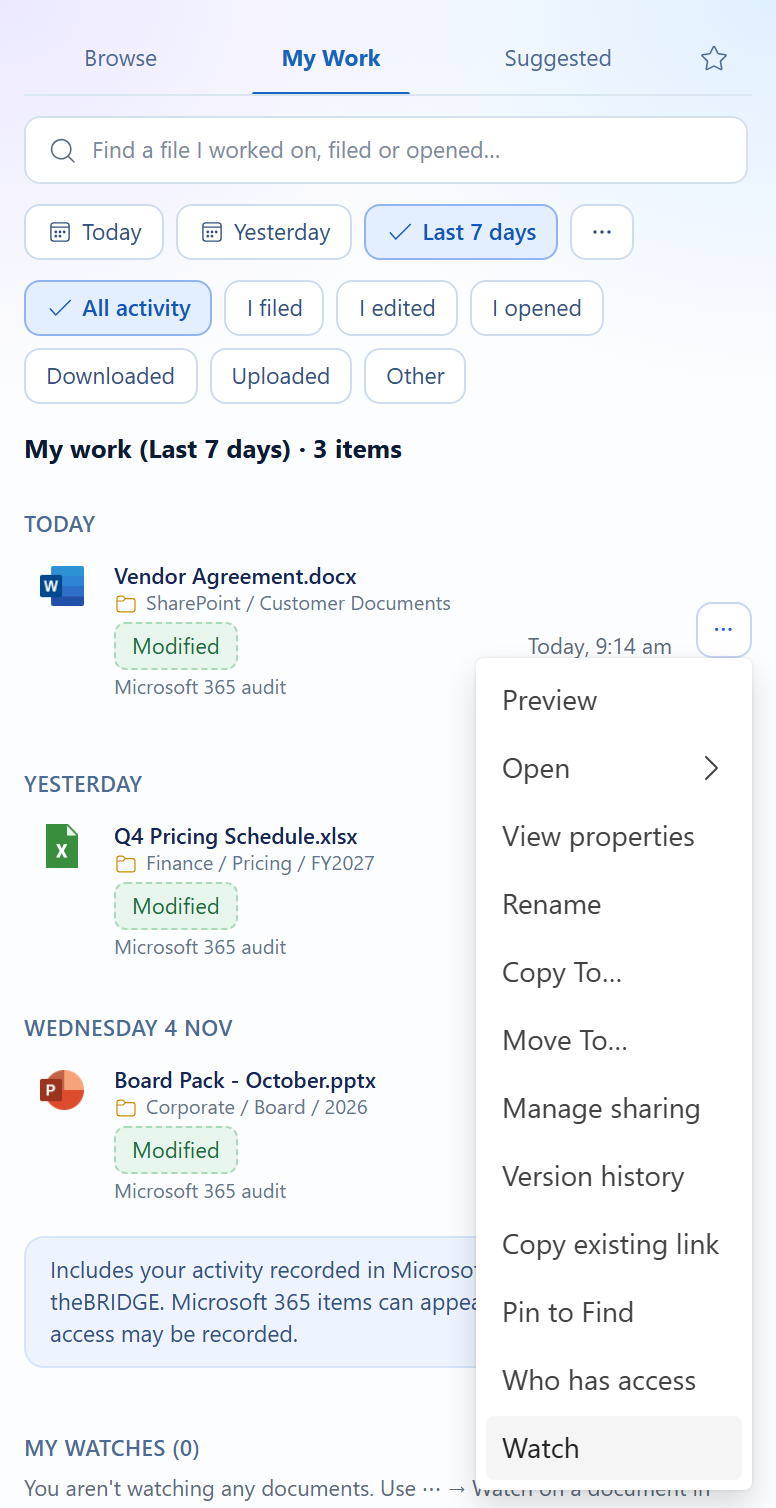
You do not need the file name or the folder. My Work lists the documents you filed, edited, opened or downloaded, and takes you back to them.

Type what you remember in everyday words; My Work sets the date and activity filters and lists the matching documents. Illustrative walkthrough with fictional data, rendered from the add-in. It is shown with Microsoft 365 activity enabled by the organisation; without it, edits that happen outside theBRIDGE are not listed.

An animation. An Outlook message from Sarah Mitchell is open next to the theBRIDGE add-in on Find, My Work. The words Documents I edited last Thursday are typed into the search field and entered. My Work shows what it understood: the date filter is Thursday 29 October and the activity filter is I edited, with the line Showing: Last Thursday, Files I edited. Four documents are listed for that day: Board Pack October, Q4 Pricing Schedule, Marketing Plan 2027 and Customer Terms. The Q4 Pricing Schedule is selected and its Activity opens, showing the steps you took, where it was filed from and where it is now.

  • Date and activity filters. Today, Yesterday, Last 7 days, or a custom range, then I filed, I edited, I opened, Downloaded or Uploaded.
  • Say it in everyday words. Type "Documents I edited last Thursday" and the filters are set for you. Fixed rules do this, not AI.
  • Grouped by the day you worked. Each document shows its location in SharePoint or OneDrive and what you did to it.
  • Preview before you open. Check a document in the pane without leaving Outlook.

Edits and downloads that happen outside theBRIDGE appear when your organisation turns on Microsoft 365 activity.

Understand

See what happened to your documents.

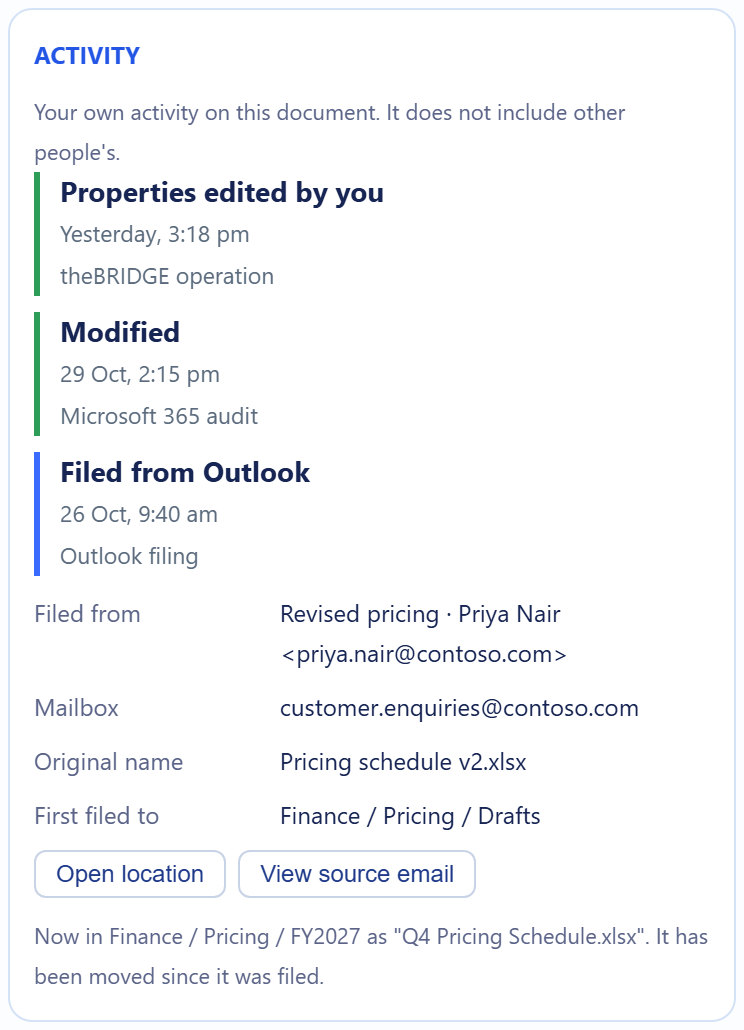
Open a document's details to see your own activity on it, with every step labelled by where it was recorded.

Document details in the Outlook add-in for Q4 Pricing Schedule.xlsx, with the Activity section listing the steps you took: properties edited by you, a Modified event from Microsoft 365 audit and the filing from Outlook, then where it was filed from and where it is now.
Illustration with fictional data, rendered from the Outlook add-in.
  • theBRIDGE operationtheBRIDGE activity. What theBRIDGE did or saw you do.
  • Microsoft 365 auditAdministrator-enabled. Recorded Microsoft 365 events, only where your organisation has switched collection on.
  • Filing and changes. Filed from Outlook, properties edited, moved, renamed or restored, and, with Microsoft 365 activity on, modified, uploaded or downloaded.
  • Recorded sharing events. A sharing change is shown as history. Whether a link exists now is checked separately against the document's current permissions.
  • Where it came from, and where it is now. The email it was filed from, and its current location if it has since been moved or renamed.

This is a record of what has been captured, not a complete history. It starts when collection starts, depends on permissions and retention, and a recorded access does not show that anyone read a document. A missing event does not prove a document was never accessed.

Watch

Stop checking. Start watching.

Watch the documents that matter, choose the kinds of change you care about, and let theBRIDGE tell you when something is recorded.

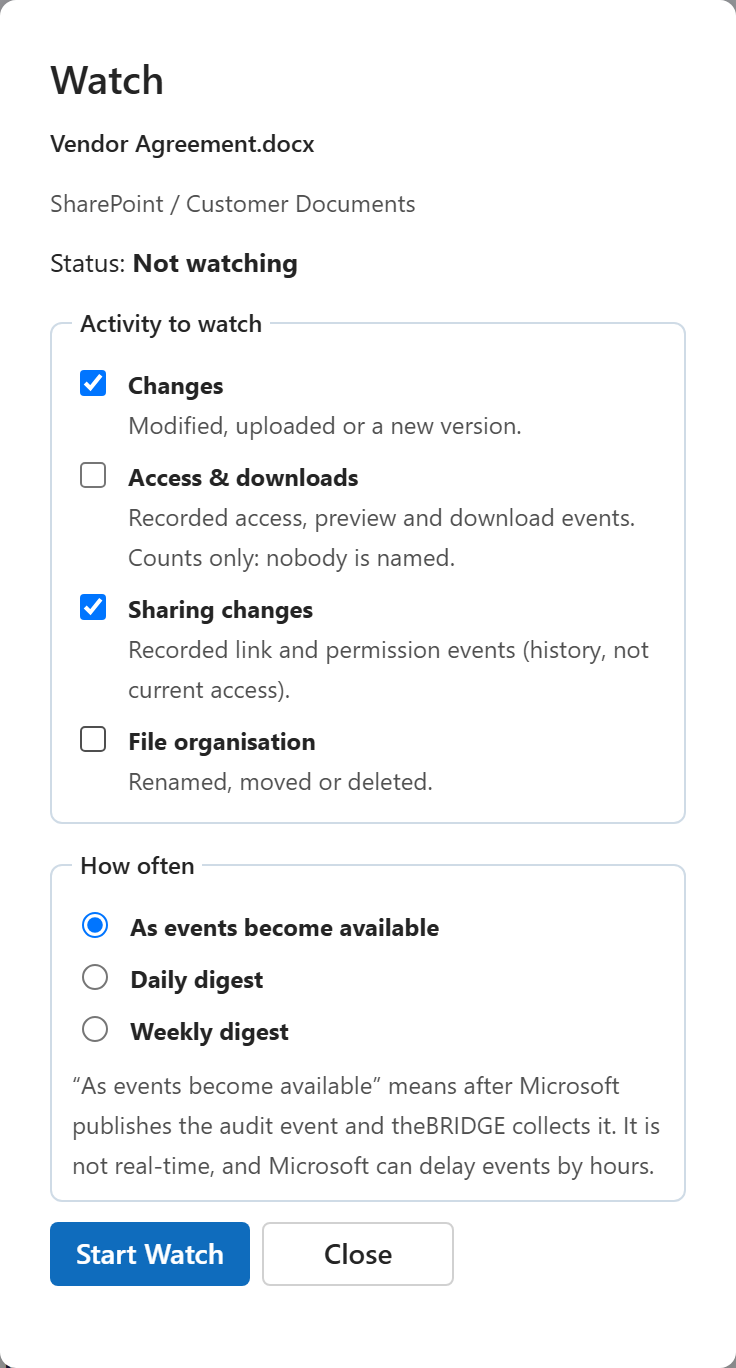
Open a document's menu in My Work, choose Watch, pick what to watch and how often, and start. Illustrative walkthrough with fictional data, rendered from the add-in. Watch is available when your organisation has turned it on, and it reports recorded activity, so updates can arrive after a delay.

An animation. An Outlook message from Sarah Mitchell is open next to the theBRIDGE add-in on Find, My Work. The menu on the document Q4 Pricing Schedule.xlsx is opened and the last item, Watch, is chosen. The Watch dialog opens with Changes already ticked; Sharing changes is also ticked. Under How often, As events become available is chosen. The dialog shows that updates appear in theBRIDGE, with Email and Teams not available. Start Watch is chosen and the dialog confirms Watch started, with Save preferences, Pause, Stop watching and Close buttons.

  1. Pick a document. Choose an eligible SharePoint or OneDrive document in Find.
  2. Open its menu. Select the ⋯ menu on the document.
  3. Choose Watch. It is the last item in the menu, and reads Manage Watch if you already watch the document.
  4. Choose what to watch. Changes, Sharing changes, File organisation and, where your organisation allows it, Access & downloads.
  5. Choose how often. As events become available, a Daily digest or a Weekly digest.
  6. Start Watch. Updates then appear under the Activity bell.

Not real-time. Activity & Watch relies on Microsoft 365 activity collection, which your administrator controls, and Watch is available only where your organisation has turned it on. A Watch reports what Microsoft has recorded: "As events become available" means after Microsoft publishes the event and theBRIDGE collects it, and Microsoft can delay events by hours, so monitoring is never guaranteed to be real-time. A Watch never shows who did something and gives nobody access to the file.

Stay informed

Important updates, right where you're working.

Watch updates appear under the Activity bell in Outlook, with an unread count, and each one leads to the document or Work Item it is about.

The Activity page in the Outlook add-in. A line at the top reads 3 new Watch updates, with a View updates button, above the Activity heading and its filters.
The Notifications page, General tab, with 3 unread Watch updates: Q4 Pricing Schedule.xlsx was modified, Product information enquiry was reassigned, and Sharing activity detected. Each has buttons such as Open document, Open Work Item, Watch details and Mark as read, and there is a Mark all as read button. The Activity item in the bottom navigation shows a bell with 3 unread.
Three unread updates.
The same Notifications page after the first update was marked as read: it now shows 2 unread Watch updates, and the Activity bell shows 2.
After marking one as read, two remain.
  1. An update arrives. When theBRIDGE records relevant activity on something you watch, the Activity bell shows an unread count.
  2. Open Activity. A line at the top says how many new Watch updates there are, with View updates.
  3. Read what changed. Each update names the document or Work Item and says what was recorded.
  4. Go straight to it. Open document, Open Work Item or Watch details takes you to the right place and marks the update as read.
  5. Keep it tidy. Mark an update as read, or Mark all as read. The count goes down, and your read state follows you.

Based on recorded activity, so there can be a delay. Updates are created after Microsoft publishes the events and theBRIDGE collects them. They are not real-time. Updates appear inside theBRIDGE; email and Teams delivery are not available.

My Watches

Monitor important documents and work in progress.

Keep track of everything you watch in one place, and extend the same idea from documents to the Work Items you care about.

Document Watches

My Watches in the Outlook add-in, with four Watches: Q4 Pricing Schedule.xlsx and Supplier Agreement - Northwind.docx marked Watching, Board Pack - October.pptx marked Paused, and a Work Item, Product information enquiry, marked Watching. Each shows its location, how often, the latest monitored activity, and Manage Watch and Stop watching buttons. Recent updates below show 2 modifications and 1 reassignment.
  • Every Watch in one list. Document, location, how often, and its status: Watching, Paused, Awaiting activity or Attention required.
  • Latest recorded activity. Each Watch shows when something was last recorded, and Recent updates consolidates what was collected.
  • Pause, resume or stop. Manage Watch lets you change what is watched, pause it, resume it or stop watching.
  • Straight to the document. Open the document from its Watch, or open a Work Item watch's Work Item.

Work Item Watch Newer capability

The Watch dialog for the Work Item Product information enquiry. Activity to watch offers Assignment, Handover, Status changes, Internal discussion, Approvals, Responses and replies, Response deadlines and Linked documents, with a note that native Teams conversation Watch is not available yet. How often offers the same three choices as a document Watch.

From Work Details in Outlook, or Work Item Details in Teams, choose Watch or Manage Watch to follow:

  • Assignment and handover
  • Status changes
  • Internal discussion
  • Approvals
  • Responses and replies
  • Response deadlines
  • Linked documents

Work Item Watch reports what theBRIDGE records on a Work Item, and only for Work Items you can already open. It is switched on by an administrator and is a newer capability, so it may not yet be available in your organisation. Watching Teams conversations themselves is not available, and updates appear inside theBRIDGE only.

Control Center and privacy

Monitoring governed by your organisation.

Administrators decide whether activity is collected, whether people can watch, and how much, in the Control Center.

The Control Center Watch Policies page. Availability shows a Watch is on switch and the supported workloads SharePoint and OneDrive. What people can watch lists the event categories Changes, Access & downloads, Sharing changes and File organisation, a switch for allowing access and download watching that is off, and the notification frequencies.
Swipe sideways to see the whole view.
The Control Center Microsoft 365 Activity page, Collection and retention section: the activity workload SharePoint and OneDrive, the collection state, how long records are kept, which categories of activity are stored, and a daily event limit.
Swipe sideways to see the whole view.
  • Activity collectionMicrosoft 365 activity collection is off until an administrator enables it. Watch does not add Microsoft workloads.
  • Watch availabilityWatch is off until a tenant administrator turns it on, and Work Item Watch has its own switch.
  • Monitoring categoriesChoose which kinds of change people can watch. Access and download watching is off by default and shows counts only.
  • Frequency and timingOffer immediate, daily or weekly updates, and set the digest time and time zone.
  • Limits and retentionSet Watches per person and per organisation, updates per day, and how long updates and activity records are kept.
  • Health and coverageSee whether collection and Watch are healthy, delayed or need attention, with counts rather than people.
Privacy and access stay in place.

Watch never shows who did something, and it gives nobody access to a document, a Work Item or a mailbox: your access is checked again each time. Each organisation's data is kept separate. Administrators see usage counts, not individual people's Watches. Events are available only for what has been collected and kept, so a missing event does not prove a document was never accessed, and recorded access does not show that anyone read it.

Find what matters. Stay informed about what changes.

From document discovery to Work Item monitoring, theBRIDGE helps you keep track of important activity across your connected Microsoft 365 workflow.