Don't remember where you saved it? Remember what you did.
My Work brings your recent document activity together inside Outlook. Find what you filed, edited, opened or downloaded, then return to the right document with its location and history.
In Outlook, under theBRIDGE, Find. It shows your own activity; edit, open and download events from Microsoft 365 appear when your organisation turns them on.

Your document activity. Easy to find.
My Work lists the documents you have worked with, one row per document, grouped by day, with where each one lives, what you did and when.

Illustration with fictional data, rendered from the add-in. Period: Today, Yesterday, Last 7 days, and more under the filter button.
Choose what you remember doing
- I filedEmails and attachments you filed to SharePoint from Outlook, a shared mailbox or a Process Pack.
- I editedProperties you edited in theBRIDGE, and document edits recorded by Microsoft 365 when that is enabled.
- I openedDocuments you asked theBRIDGE to open, and opens or previews recorded by Microsoft 365 when that is enabled.
- DownloadedDownloads recorded by Microsoft 365, when your organisation has enabled Microsoft 365 activity.
- UploadedUploads recorded by Microsoft 365, when your organisation has enabled Microsoft 365 activity.
- OtherMoved, renamed or copied documents, sharing changes and restored versions.
Not every kind of activity is available from every source. theBRIDGE records its own filing and document actions. Editing, opening, downloads and uploads across Microsoft 365 appear only where your organisation has switched on Microsoft 365 activity. "Open requested" records that you asked to open a document, not that you read it.
These work together. My Work is not the shared mailbox assigned-work queue, and it does not replace the Activity hub, which shows theBRIDGE processing.
Describe what you remember.
You do not need the file name or the folder. Say when it was and what you did, and My Work sets the filters for you.
An animation. An Outlook message from Sarah Mitchell is open next to the theBRIDGE add-in on Find, My Work. The words Documents I edited last Thursday are typed into the search field and entered. My Work shows what it understood: the date filter is Thursday 29 October and the activity filter is I edited, with the line Showing: Last Thursday, Files I edited. Four documents are listed for that day: Board Pack October, Q4 Pricing Schedule, Marketing Plan 2027 and Customer Terms. The Q4 Pricing Schedule is selected and its Activity opens, showing the steps you took, where it was filed from and where it is now.
- Say it your way. Type what you remember, such as "Documents I edited last Thursday".
- See what was understood. The date and the kind of activity become filters, and My Work shows them back to you: "Showing: Last Thursday · Files I edited".
- Pick the document. Matching documents are listed with their location, activity and time. Select one to see its history.
Other things you can say
- Files I filed yesterday
- PDF files I opened last week
- Word documents I edited this week
- Files I downloaded in the last 14 days
- Documents I filed in the Contracts folder
Your words are turned into filters by fixed rules, not by AI. Anything My Work does not recognise carries on as an ordinary search of your activity, and the filters can always be changed by hand. Edits and downloads appear when Microsoft 365 activity is enabled for your organisation.
See what happened to the document.
Open a document from My Work and its Activity shows your own history with it, where it came from and where it lives today.
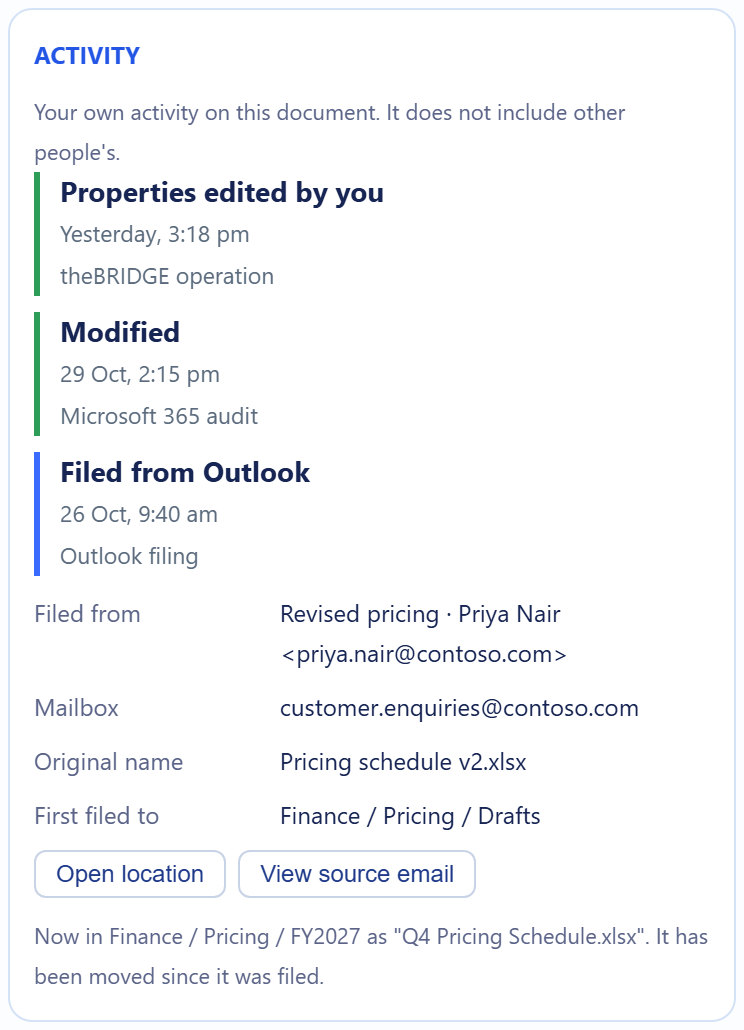
- Each step you took, newest first, with the date, time and where it was recorded: theBRIDGE or Microsoft 365.
- Where it was first filed from: the email subject and sender, the mailbox it came through and the original file name.
- Where it is now, checked with your own access, including whether it has been renamed or moved since it was filed.
- Open location, and View source email when you can open that message.
theBRIDGE records which document it filed, not just where, so the history can still find it after it is renamed or moved, as far as the records allow.
Activity shows your own steps only, never other people's. A document filed or changed before recording began has no earlier history, and if a document has been deleted or you no longer have access, My Work says so.
Find it. Preview it. Get back to work.
Check that it is the right document before you open anything else, without leaving Outlook.

Illustration with fictional data. The preview pane is rendered from the add-in; the page shown inside it stands in for Microsoft's preview.
- Open Preview from a document's menu in My Work. The document opens inside the task pane, over the same screen.
- Press Back, or Escape, and My Work is exactly as you left it: the same filters, results and scroll position.
- Open in Microsoft 365 or Document Details are one click away from the preview.
Files that can be previewed
- PDF.pdf
- Images.jpg .png .gif
- Word.doc .docx
- Excel.xls .xlsx
- PowerPoint.ppt .pptx
The preview is Microsoft's own, read-only, and shown only to you for a file you can open. Other file types, and files you cannot access, keep Open in Microsoft 365, and the pane says why. Opening a preview is not recorded as reading the file.
Go beyond theBRIDGE's own activity.
Organisations can add personal document activity from Microsoft 365 audit data, so edits, opens, downloads and uploads made outside theBRIDGE can appear in your My Work too. Every row says where it came from.

Illustration with fictional data, rendered from the add-in with Microsoft 365 activity enabled.
- theBRIDGE operationFrom theBRIDGE Filing, properties, open requests, moves and renames.
- Microsoft 365 auditFrom Microsoft 365 Access, edits, downloads, uploads and changes, where supported.
Safeguards that come with it
- Off until your administrator turns it on. Nothing is collected by default. An administrator connects Microsoft 365 audit data and enables collection in Control Center.
- Your own activity, and only what you can open. My Work shows your activity, and a document's details are read with your own access.
- A recorded operation is not proof of reading. An "Accessed" event means the document was opened or previewed. It does not show that anyone read its contents, and automated access can be recorded too.
- Sharing now is checked separately. A sharing event is history. Whether a link exists today is read from the document's current permissions, and shown as Exists now, Not found now or Not verified.
- Coverage has limits. It starts when collection starts, depends on permissions and the retention period, and Microsoft 365 events can appear late.
This is a personal view of your own activity. theBRIDGE does not monitor people by default, and it is not an employee-monitoring tool.
Watch the documents that matter.
Found a document you need to keep an eye on? Watch it from My Work, and let theBRIDGE tell you when something is recorded.
An animation. An Outlook message from Sarah Mitchell is open next to the theBRIDGE add-in on Find, My Work. The menu on the document Q4 Pricing Schedule.xlsx is opened and the last item, Watch, is chosen. The Watch dialog opens with Changes already ticked; Sharing changes is also ticked. Under How often, As events become available is chosen. The dialog shows that updates appear in theBRIDGE, with Email and Teams not available. Start Watch is chosen and the dialog confirms Watch started, with Save preferences, Pause, Stop watching and Close buttons.
- Select a document. Open the ⋯ menu on a document in My Work and choose Watch.
- Configure the Watch. Choose what to watch and how often, then start.
- Find it in My Watches. Every Watch is listed in My Work, where you can change, pause or stop it.
- Get an Activity notification. When relevant activity is recorded, an update appears under the Activity bell, with an unread count and a link to the document.
Watch is available when your organisation has turned it on. It reports what has been recorded, so updates can arrive after a delay, and they appear inside theBRIDGE through the Activity bell.
Activity coverage controlled by your organisation.
Administrators decide whether Microsoft 365 activity is collected at all, for how long it is kept and how much of it they can see.
Illustration with fictional values, redrawn from the Control Center Microsoft 365 Activity page.
- Enable, pause or disable Microsoft 365 activity collection.
- Choose how long theBRIDGE keeps its stored copy: 7, 30, 90 or 180 days.
- See collection health and coverage, including when records are incomplete.
- Read aggregate Activity insights, and site and library summaries, with no individual names.
- See sharing activity summaries, with current sharing status checked separately.
Aggregate insights show counts, never individual names. "No recent recorded activity" and "Potentially inactive" describe what was recorded, and they depend on how long monitoring has run; where there is too little history, the label says so. They are not proof that a document was never used.
Your next document is easier to find with My Work.
Remember what you did, and let theBRIDGE take you back to the document, its history and its location, inside Outlook.